
Index
- Content Upload
- Editing and metadata of existing files
- Categories
- Content tags
- Content validity
- Days and times
- Clients and Agencies Area
- Display Rules
- Save and publish
The Content Addition and Editing screen was developed to centralize the entire media management workflow. In a single interface, it is possible to upload, classify, apply display rules, and publish material, saving time on routine tasks and campaign creation.
Important Note: To save a content, the only strictly mandatory fields are the file itself, the file name and the duration (if it is an image). All other fields and rules described below are optional and should be used according to the needs of the campaign.
Content Upload
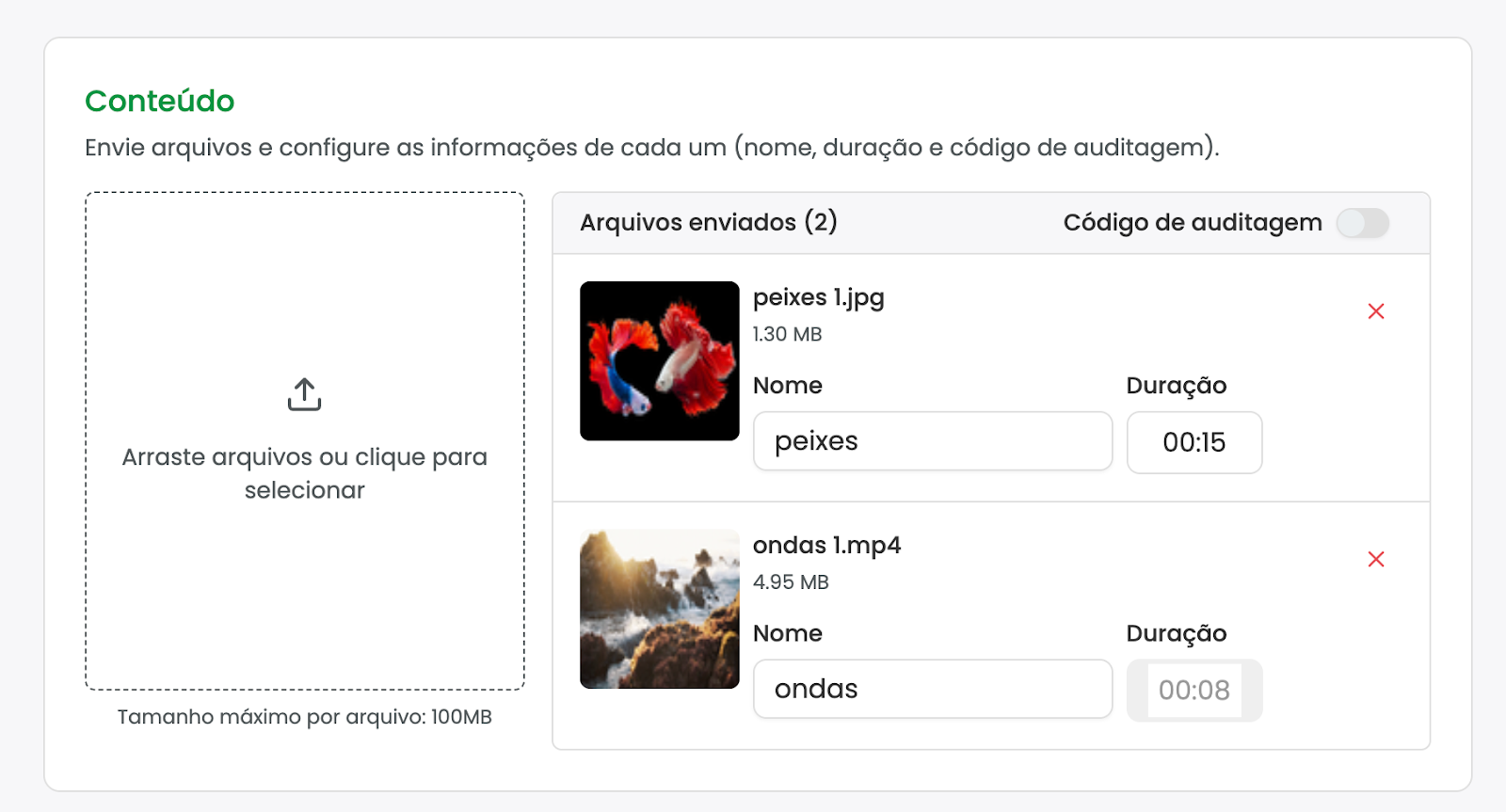
The file submission process has been optimized to handle multiple media simultaneously and provide instant visual feedback.
Upload method: You can click the button to choose files in the system explorer or simply drag files directly from your desktop to the content area of the screen.
Multiple upload and visibility: By selecting one or more files (images or videos), the system displays the upload progress for all of them at the same time.
Limits and formats: The default size limit is 100 MB per file. If your operation requires larger files, it is necessary to consult the support team to adjust the account.
Automatic conversion: Regardless of the video format sent, the system will automatically convert it to MP4, which is the preferred and optimized format of the platform.
Mandatory duration for images: As the platform's logic is based on continuous video playlists, static images require the manual definition of an estimated duration (e.g., 15 seconds) so the system knows how long they should remain on screen. For videos, the system extracts the duration automatically from the file itself.
Cancel upload: During or after submission, if you decide to discard a specific media, simply click remove before saving, discarding that file without affecting the others.
Audit code: Located at the top of the screen, it allows defining an identifier code (e.g., "ABC1234") for all files being uploaded together. This is essential for campaigns audited by external companies (such as PlayVC), ensuring that all images and videos in that batch receive the same audit tag.
Editing and metadata of existing files
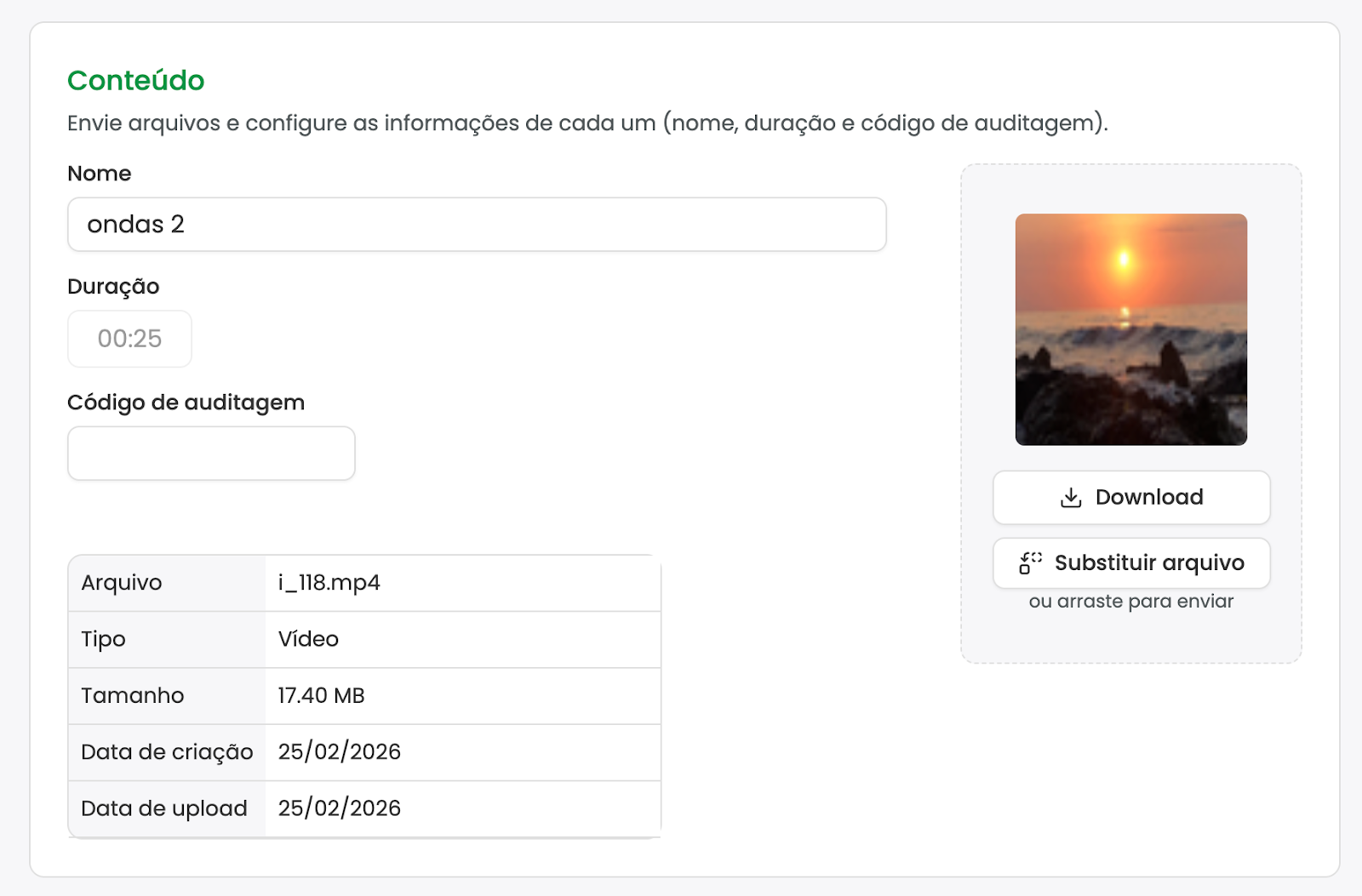
When you access the screen to edit a file that has already been saved, the interface presents detailed information about the media and replacement options.
File features: Right below the content area, the system displays the media metadata: Type (image or video), File size, Creation Date, and Upload Date.
Optimized internal name: The system displays the internal name of the file. The platform changes the original name you uploaded to an optimized name, ensuring the best performance within playlists. You can change this name and the duration (if it is an image) on this screen.
File replacement and history: You can swap the physical media of a campaign without needing to create new content from scratch. This is extremely useful for keeping the previous history of that file intact, such as display reports (play logs).
Creation date vs. Upload date: When replacing media, the Creation Date marks the day when that content space was first created. The Upload Date marks the day of the last physical file submission that replaced the old one.
Viewing tools: On the edit and addition screen, there is a Preview button to watch/view the media directly in the browser, plus an option to Download the original file.
Categories
Categories function as the main structure for organizing your content, operating intelligently when integrated into the display.
To add the file to a category, select the option in the component.
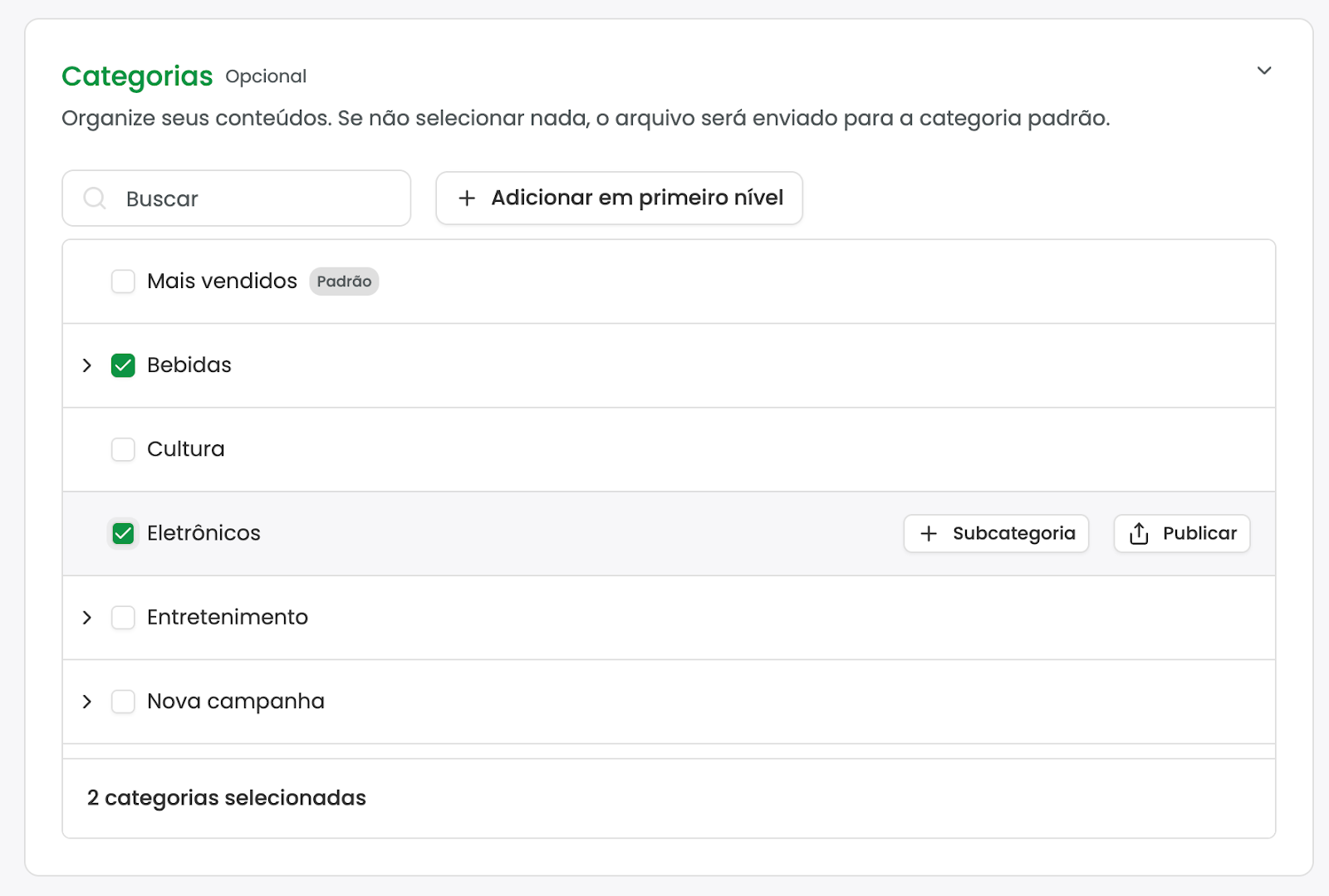
Default Category: All content must strictly be in at least one category. If none is marked by the user, the system will automatically send the file to the "Default Category".
Playlist behavior (Carousel): When adding a category to a playlist, it stops being just a folder and transforms into a dynamic carousel. If the category has three images, the playlist will display the first image in the first cycle (loop), the second image in the next cycle, and the third in the following cycle, playing only one file from the category at a time.
Quick creation: On the edit screen itself, you can add the file to existing categories or create new ones. To create a main category (1st level), click the dedicated button at the top.
Subcategories: Hover over an existing category and click + Subcategory. A modal will appear for you to type the name (e.g., "New Content") and save the structure without having to leave the screen.
Search and visual management: Use the search bar to find specific categories quickly. In the footer of the categories area, hover to open a small modal that displays all folders currently selected for the file, allowing you to remove them easily.
Direct publishing from category: When hovering over a category in the list, click the Publish button. A modal will allow you to send all files contained in that folder at once to a playlist, sub-playlist, or specific player.
Content tags
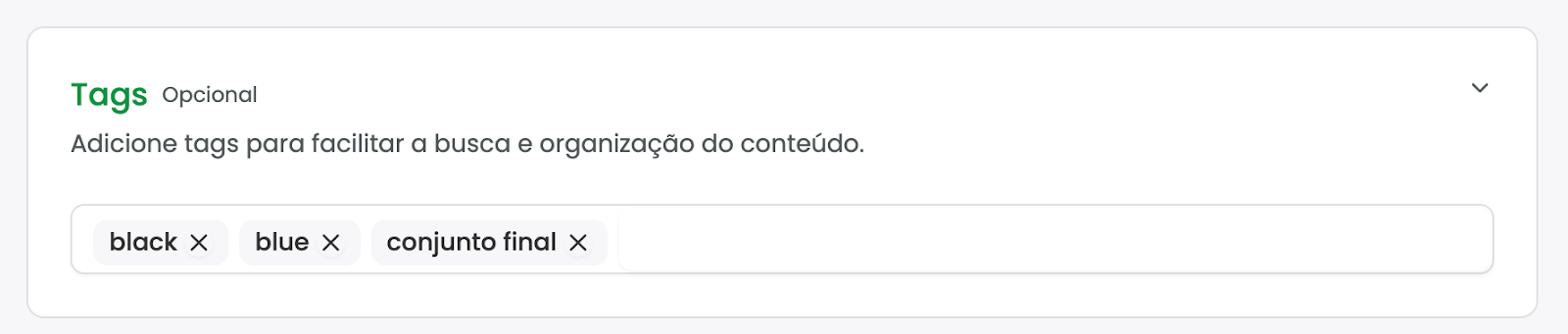
Tags serve to create an agile organization layer, functioning as flexible labels to group, filter, and identify your contents freely.
Selection of existing tags: Click on the tag input field to open a dropdown menu. From there, choose the tags that have already been registered in your system.
Instant tag creation: The creation process does not require navigation to other screens. Simply type the desired word or term in the field and press the Enter key. The new tag is created in the system and linked to the content immediately.
Content validity
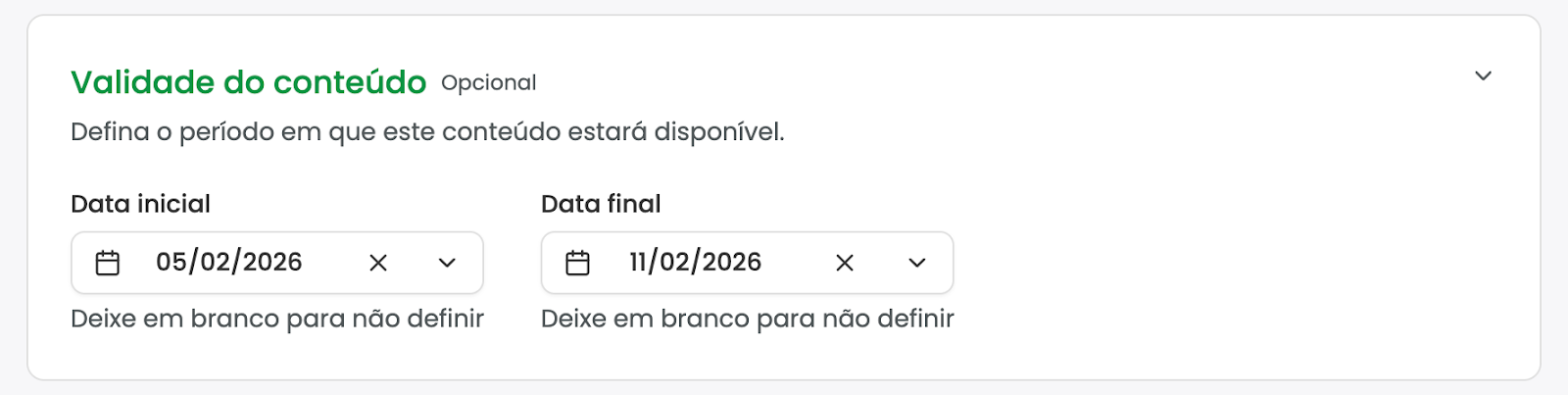
The validity setting determines the overall useful lifecycle of that media within the system, being perfect for campaigns with defined deadlines (e.g., retail promotions).
Date Definition: You can establish a Start Date and/or an End Date for the campaign (e.g., valid until February 20th).
Practical Behavior: The system will strictly respect this calendar. Content will not be displayed on any screen before the stipulated start date. Similarly, on the day following the end date, the content will stop playing automatically, even if it is still inserted in an active playlist.
Optional Use: If you do not fill in these dates, the content will have no expiration date and will play at all times while in a playlist.
Days and times
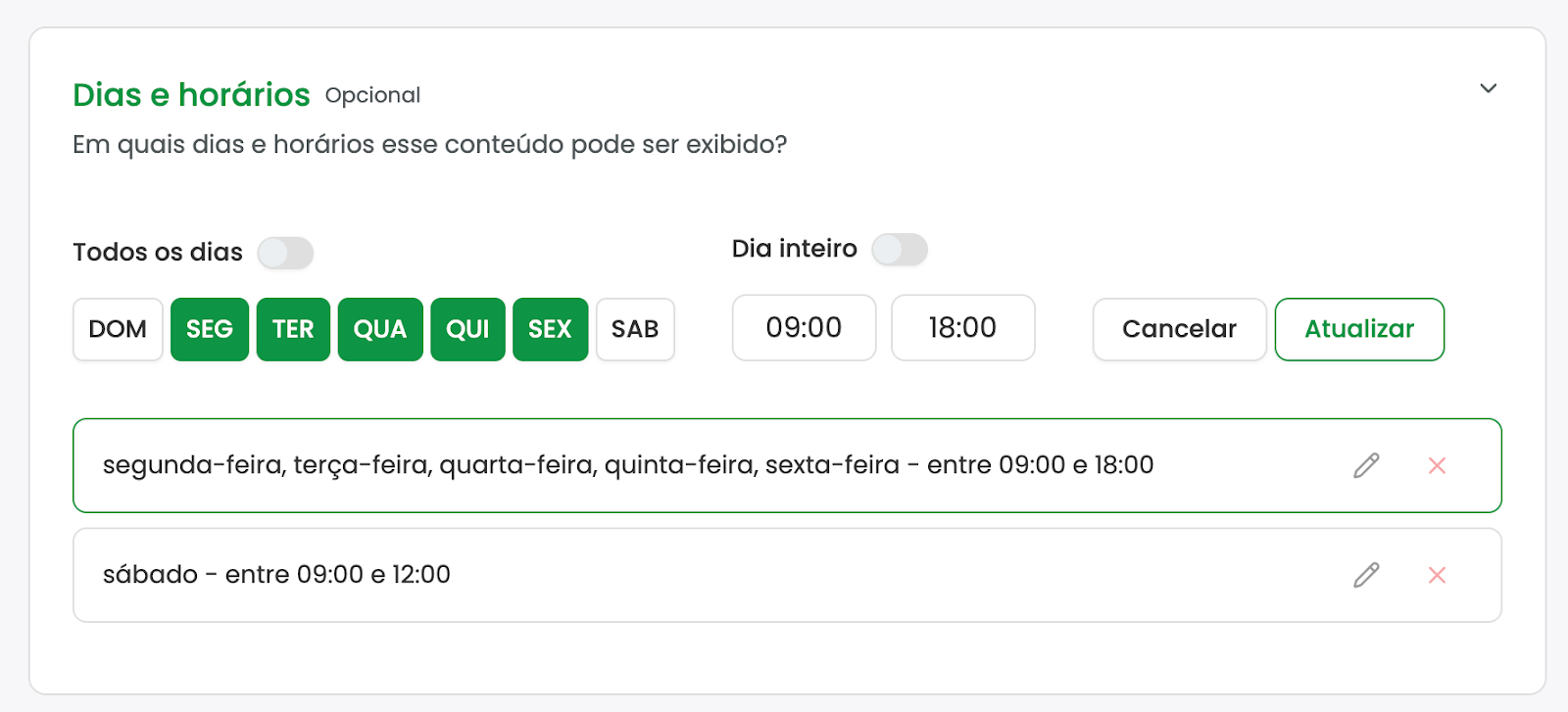
Unlike Validity, which focuses on the entire year's calendar, this configuration creates weekly and daily broadcasting filters.
Day Selection: You check the boxes only for the days of the week the media should appear (e.g., Sunday, Tuesday, Thursday, and Saturday).
Daily Schedule Rules: You can allow it to play all day on the selected days, or restrict it to specific time slots (e.g., from 06:00 AM to 06:00 PM).
Schedule Button (Multiple Rules): By clicking Schedule, you save that rule. The system allows creating different combinations. For example: set from 06:00 AM to 06:00 PM on Monday and then add a different rule for the weekend. The content will play only on the days and during the time windows you explicitly schedule. In periods not covered, the screen will skip this content.
Optional Use: If there is no restriction filled in, do not worry about this block. Without configured rules, the media will play freely without day or time blocks.
Clients and Agencies Area
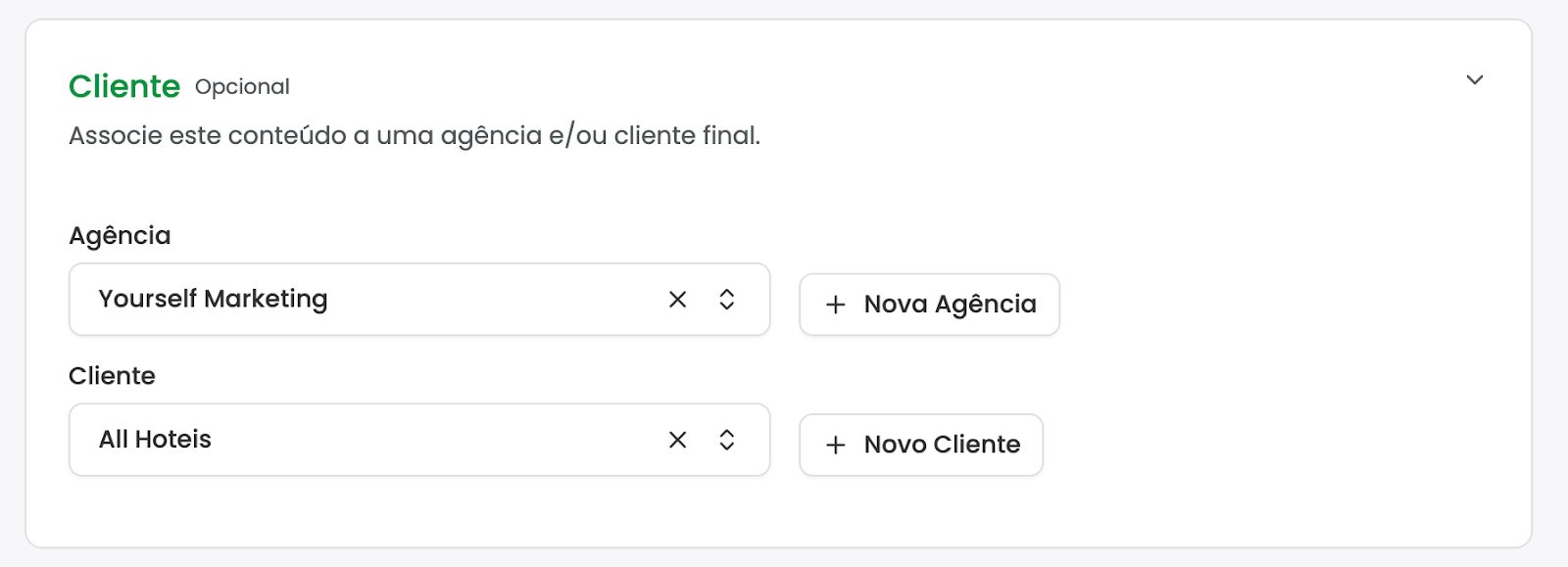
This feature is aimed at business management, being especially useful for Out-of-Home Media (OOH/DOOH) companies or networks that manage content from various advertisers, allowing strictly separating files by final client or responsible agency.
Client Selection: Use the search bar or the default listing to find and select an agency or client that is already registered in your database.
Integrated Simplified Registration: If the content belongs to a new client, you do not need to interrupt your upload flow. Click on the New Agency button located on the side of the area.
Data and Automatic Linking: A space will open to fill in the basic identification data: Name, Corporate Name, and Trade Name (e.g., Agency X). Upon confirming the creation, the system saves the new client and automatically selects them for the files you are currently working on.
Display Rules
Note: This functionality is currently exclusive to players running Windows and Linux operating systems.
This is the most granular level of control. It allows creating intelligent exceptions to limit the display of content based on the labels (tags) that physical players have. It is the ideal feature to ensure, for example, that confidential content inserted in the general corporate playlist does not play on screens in public areas, or for regionalizing ads.
Block/Release Logic: You determine the main action: Display the content or Do not display the content if a condition is met.
Simple Rules: The condition is based on the player's tags. You stipulate if the player must have All, Any or None of the chosen tags.
Example: "Display this content if the player has the tag 'Black' AND the tag 'Catalog' (All tags)".
Reverse Example: "Do not display this content if the player has the tag 'Test'".
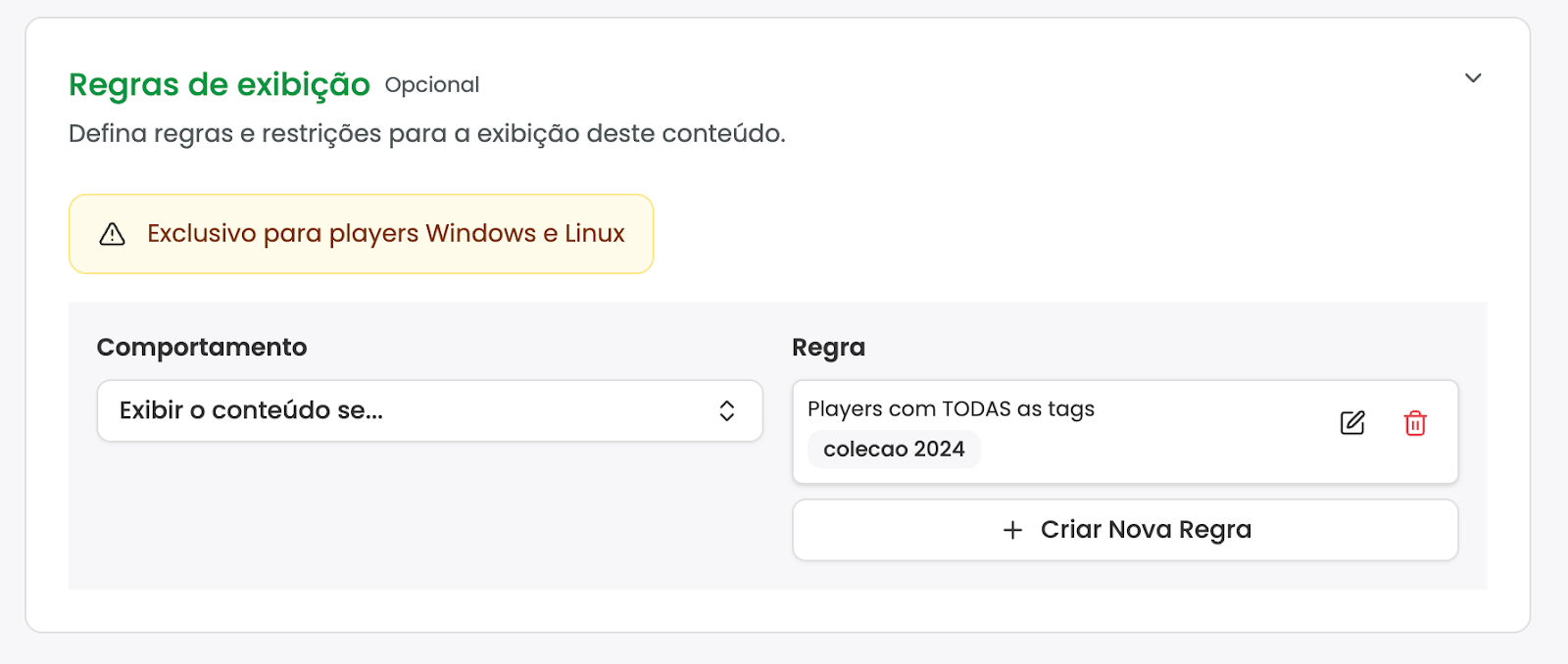
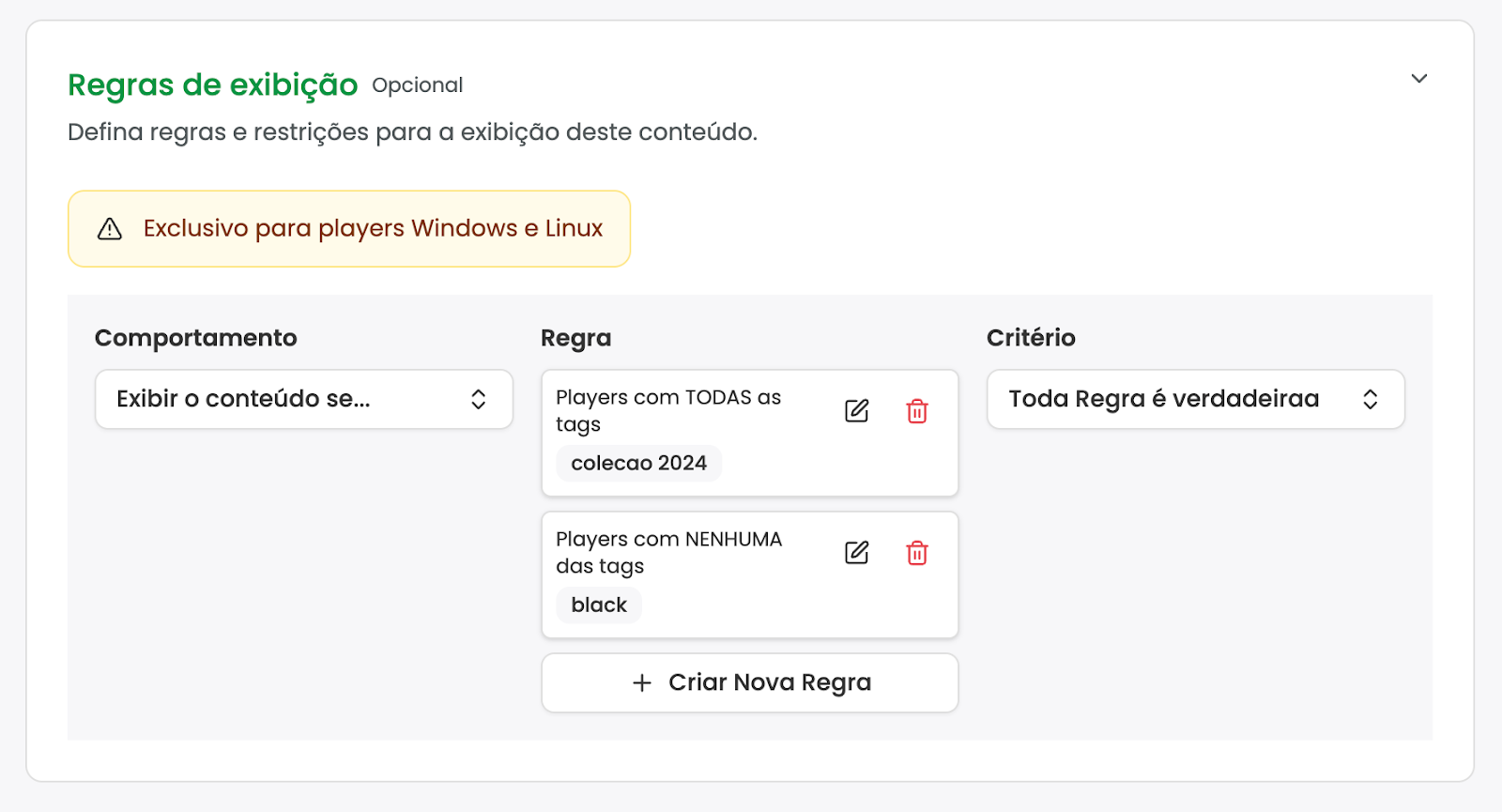
Combination of Rules (Contradictory Logic): Some scenarios require crossing complex information. To do this, you click Create New Rule to add a second verification level.
Practical Example: Imagine you want to display the media if the player has the tag "New York", BUT NOT if it also has the tag "Shopping Center". It's like saying: "I like cars, but I don't want them to be blue".
Multiple Evaluation Criteria: When creating two or more combined rules, the system adds a third column called Criteria. There, you need to decide if the rules depend on each other:
Both Rules are Valid: The player must strictly meet all designed rules for the action to happen.
Either one meets: If the player matches any of the rules created independently (e.g., if it's New York OR if it's a blue car), the criteria is already considered valid.
Save and publish
To complete the entire process while saving as many clicks as possible, the main button on the screen has dual functionalities.
Save (Default): The most common use is just clicking Save. This registers the files, categories, and all rules created in the database.
Save and Publish (Advanced Menu): Next to the Save button, there is a small triangle (down arrow). Clicking it reveals the Save and Publish option.
Integrated Mass Publishing: By choosing this advanced option, the system saves all progress and immediately opens the Publishing panel (Modal).
This allows you to take that file (or batch of files) you just configured and send them directly to the destination players.
In the modal, you will give the publication a name (e.g., "Example Publication") and indicate the exact point where it will enter.
Monitoring: As soon as the publication is triggered, the system offers the option to return to the normal file list or navigate directly to the publication monitoring screen, where you can check the status and confirm if the media was successfully sent to the physical players.