
The 4YouSee Player Linux is the new player from 4YouSee. To run the 4YouSee Player Linux on your machine, it is necessary to install the Robot. The Robot’s function is to monitor the player and ensure its proper operation.
Compatible Versiones
The complete installation and automatic initialization process of the 4YouSee Player Linux Robot has been tested and approved only for Ubuntu 16.04, 18.04, and 20.04 with Systemd.
If the version is different from 16.04, 18.04, or 20.04, the following message will be displayed:
The Ubuntu version ($UBUNTU_VERSION) is not supported.
Please use version 16.04, 18.04, or 20.04.
You can ignore the version and architecture check using the parameter
--force: ./installRobot.sh --force
And in case of execution in armv71, aarch64, or arm64 environments, the following message will be displayed:
The system architecture ($ARCHITECTURE) is not supported (ARM).
This script cannot be executed on ARM devices.
Linux Installation
Follow the next steps:
1st Step: Access the icon referring to the initial Panel, in the upper field of the wall. Type the word "terminal". Click on the Terminal icon to open it.

2nd Step: To install the Player for Linux, just enter the command below in the terminal.
curl -L -H 'Cache-Control: no-cache' http://files.4yousee.com.br/players/new/robot/installRobot.sh | bash
If curl is not installed, you can use the command below or follow the steps in the article How to install Curl on your computer.
wget --header="Cache-Control: no-cache" -O - http://files.4yousee.com.br/players/new/robot/installRobot.sh | bash

3rd Step: Press Enter. This command will execute the installation script that will download the necessary files, install the dependencies, copy the configuration file and start the 4YouSee Player service.

4th Step: Enter a user password, the same as you entered at the moment of starting the session.
Wait a few moments for the 4YouSee Player to be installed.
Once installed, the following will appear for configuration:
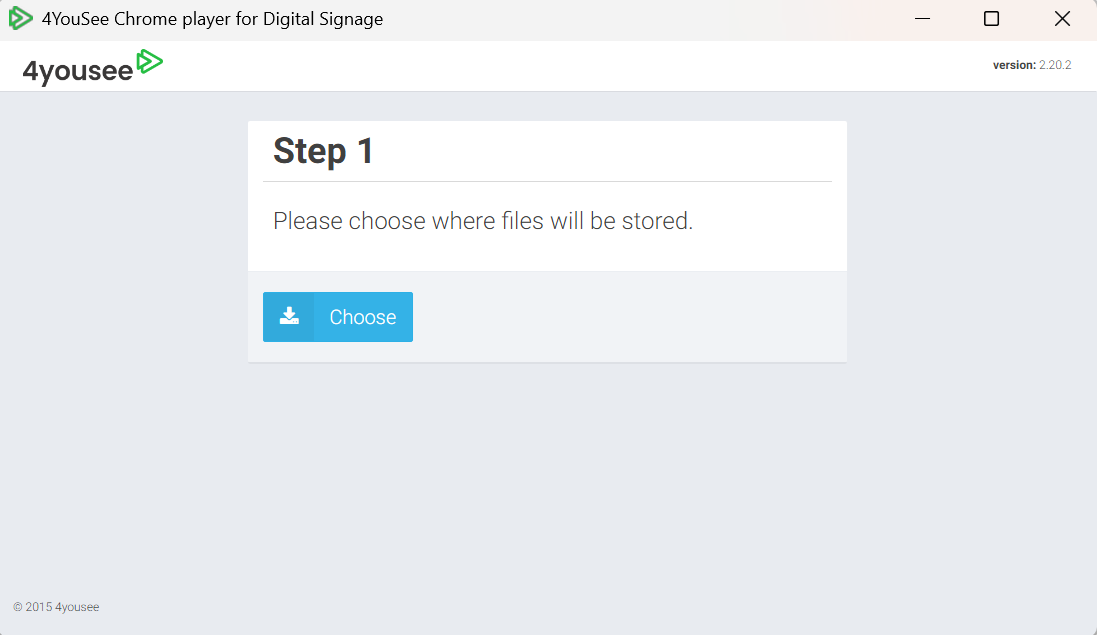
5th Step: Configure the player.
To configure your player follow the instructions in the article How to configure 4YouSee Player in Linux / Windows
After this player will be executed.